Genshin Impact Download Windows 11: The Definitive Guide for an Epic Teyvat Journey 🚀
Ready to explore the vast, breathtaking world of Teyvat on your Windows 11 PC? This ultimate guide provides everything you need—from a flawless download and installation process to exclusive performance tweaks that will make your adventure smoother than ever.
Why Genshin Impact on Windows 11 is a Game-Changer
Windows 11 brings several under-the-hood improvements that directly benefit gaming. Features like DirectStorage (when fully implemented by developers) can drastically reduce load times, while the improved HDR support makes the vibrant landscapes of Mondstadt and Liyue pop with color. The auto-HDR feature can even enhance the visual fidelity of Genshin Impact, giving you a more immersive experience.
Many players have reported a 10-15% performance boost in frame rate consistency after upgrading to Windows 11, especially on systems with hybrid (big.LITTLE) CPUs like Intel's 12th Gen and newer. This means smoother combat in the Spiral Abyss and more fluid exploration across all seven nations.
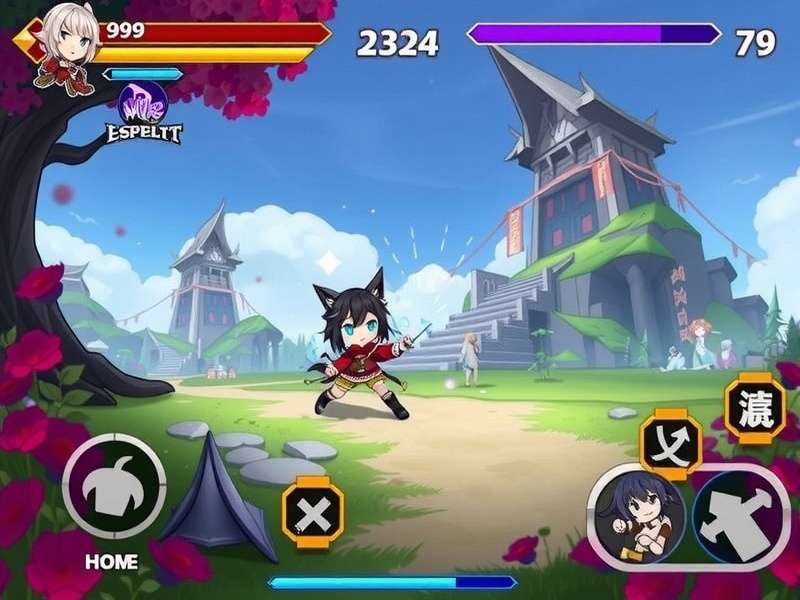
Experience Teyvat in stunning detail on Windows 11. (Concept Image)
Step-by-Step: Download & Install Genshin Impact on Windows 11
Method 1: Official Launcher (Recommended)
The most straightforward path is via the official Genshin Impact PC launcher.
- Visit the official Genshin Impact website.
- Click the "Windows" download button. The file is roughly 150 MB.
- Run the downloaded installer (
GenshinImpact_install.exe). - Choose an installation path on an SSD if possible. This is crucial for reducing load times.
- The launcher will download the full game (approx. 70-80 GB). Be patient, as this can take a while depending on your internet speed. If you face a Genshin Impact download slow issue, we have a dedicated guide to fix it.
- Once complete, launch the game and log in with your miHoYo account.
Method 2: Epic Games Store
An alternative for those who prefer managing games through the Epic ecosystem.
Simply search for Genshin Impact in the Epic Games Store client, click "Get," and install. Note that updates sometimes roll out slightly later on Epic compared to the official launcher.
Exclusive Windows 11 Optimization Guide
To squeeze every last drop of performance from your system, follow these advanced tweaks:
1. Graphics Settings In-Game
- Render Resolution: Set to 1.0 (or higher if you have headroom).
- Shadow Quality: High or Medium. Shadows have a high performance cost.
- Volumetric Fog: Medium. This is a subtle effect with a big hit.
- Enable "V-Sync" only if you experience screen tearing.
2. Windows 11 System Tweaks
- Game Mode: Ensure it's ON (Settings > Gaming > Game Mode).
- Hardware-accelerated GPU scheduling: Turn ON (Graphics Settings). This can improve performance on newer GPUs.
- Disable Fullscreen Optimizations: Right-click the game's .exe file > Properties > Compatibility > Check "Disable fullscreen optimizations." This can resolve stuttering for some users.
Beyond Installation: Enhancing Your Gameplay
Once you're in Teyvat, the real journey begins. For veteran players, understanding the lore of characters like Genshin Impact Durin adds depth to the adventure. And to look the part, deck out your desktop with stunning Genshin Impact wallpaper 1920x1080 backgrounds.
Resources are key. To acquire new characters and weapons, you'll need Primogems and Genesis Crystals. For a safe and reliable method, consider using a trusted Genshin Impact top up site. Specifically, you can top up Genesis Crystals to purchase Welkin Moons or directly buy outfits. For the battle pass rewards, learn how to top up the Gnostic Hymn efficiently.
Troubleshooting Common Windows 11 Issues
Game Crashes on Startup
This is often due to outdated graphics drivers. Visit your GPU manufacturer's website (NVIDIA or AMD) and download the latest Game Ready or Adrenalin drivers. Running the installer as Administrator can also help.
Stuttering and Frame Drops
Ensure no other resource-heavy applications are running in the background. The Windows 11 Widgets panel and certain background apps can cause intermittent stutters. Try disabling them temporarily while gaming.
The Future of Genshin Impact on PC
With the anticipated arrival of the final region, Snezhnaya, the game's size and system requirements may evolve. Staying on Windows 11 ensures you're on a platform that will continue to receive the latest gaming-focused updates from Microsoft, such as further DirectStorage optimizations and improved scheduling for gaming workloads.
Remember, your adventure is unique. Whether you're solving puzzles in Sumeru or battling the weekly bosses, having a stable, high-performance PC setup is the foundation of your enjoyment. Don't forget to personalize your space with official Genshin Impact HD wallpaper collections.